

Organization Name
Edit the organization name at the top of the page. The name is used in suggestions, appears across the app, and is included on your final submission, so use the full legal name of your organization.Members
Use the Members section to add or remove people from the organization. New members receive an email invitation to join. Once they accept, they show up in the users table and can be added to functional groups.Functional Groups
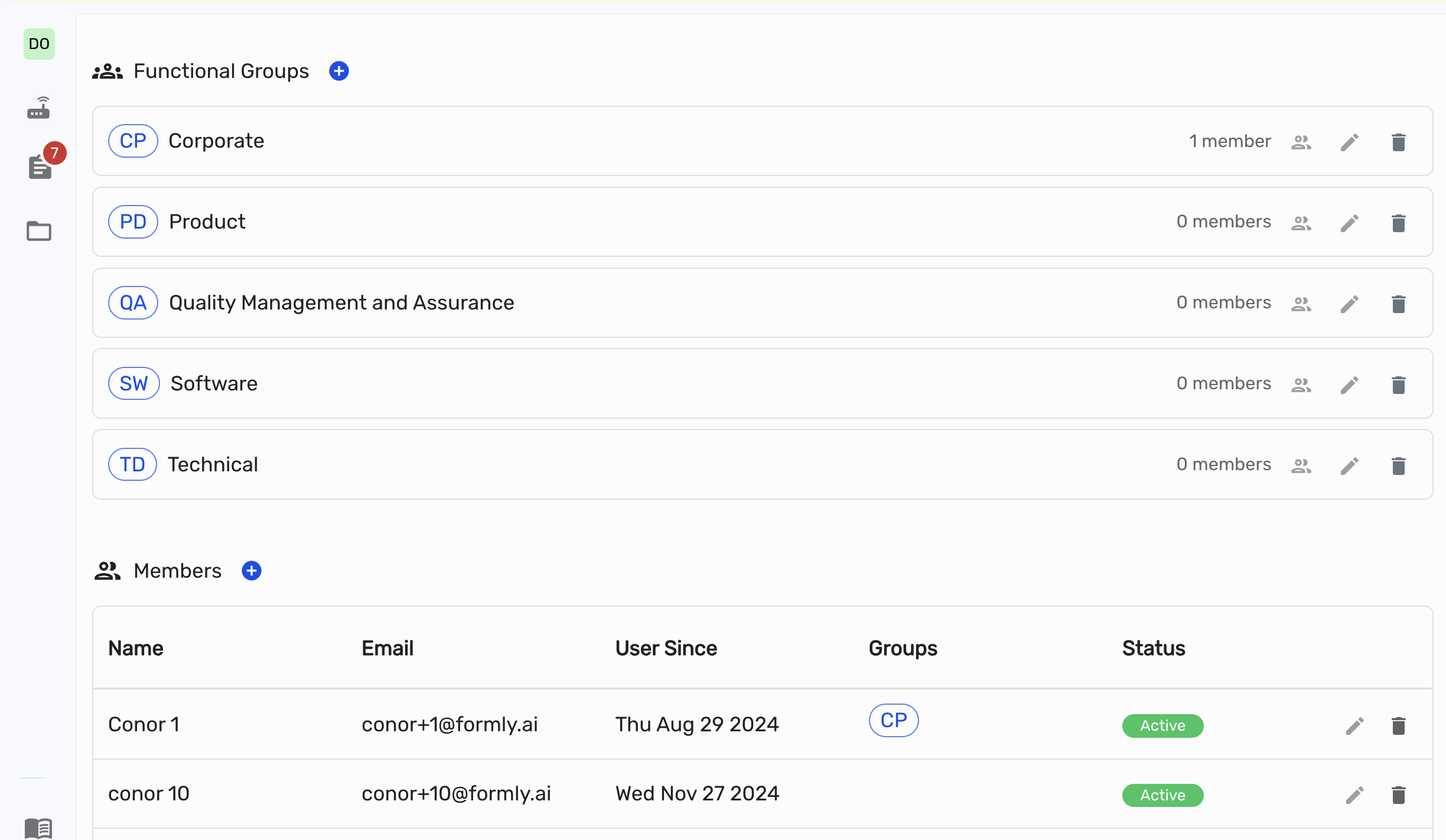 Functional groups describe the areas in your organization that own documents (for example, Quality Management and Assurance, Software, Regulatory). Every document can be attributed to a functional group so it is clear who is responsible for it.
Defaults
Every organization is seeded with a standard set of functional groups when it is created, so existing document classifications keep working out of the box. You can rename or remove the defaults and add your own.Create a group
- Open the Functional Groups section on the Manage Organization page.
- Click Create functional group.
- Enter a name (for example, “Quality Management and Assurance”). An acronym is suggested automatically and can be edited (for example,
QA). - Optionally enable Can Manage Trainings if members of this group should manage organization-wide Training Programs.
- Save.
Training management permission
Enable Can Manage Trainings for a functional group when its members should review and administer organization-wide training. Members of a group with this permission can open All Training Programs, review organization-wide completion, assign training programs, edit settings and trainee pools, manage quizzes, manually send training, and delete programs, occurrences, or individual tasks. This permission applies within the group’s organization. Users with administrator access can also perform these actions. Members without training-management permission can still complete their own assigned training from My Training Programs.The default QA functional group has Can Manage Trainings enabled when an organization is created. Normally this is the only group that needs this permission.
Rename or delete a group
- Use the edit icon next to a group to update its name or acronym.
- Use the delete icon to remove a group. Any documents that referenced the group are kept — their functional group is simply cleared. Document templates that pointed at the group by acronym are unaffected.
Manage members
Click a group to open its member list. From there you can:- Add members from the organization.
- Remove members from the group without affecting their organization membership.
Any member of the organization can create, edit, and delete functional groups and manage their membership. If you need stricter control, let us know.